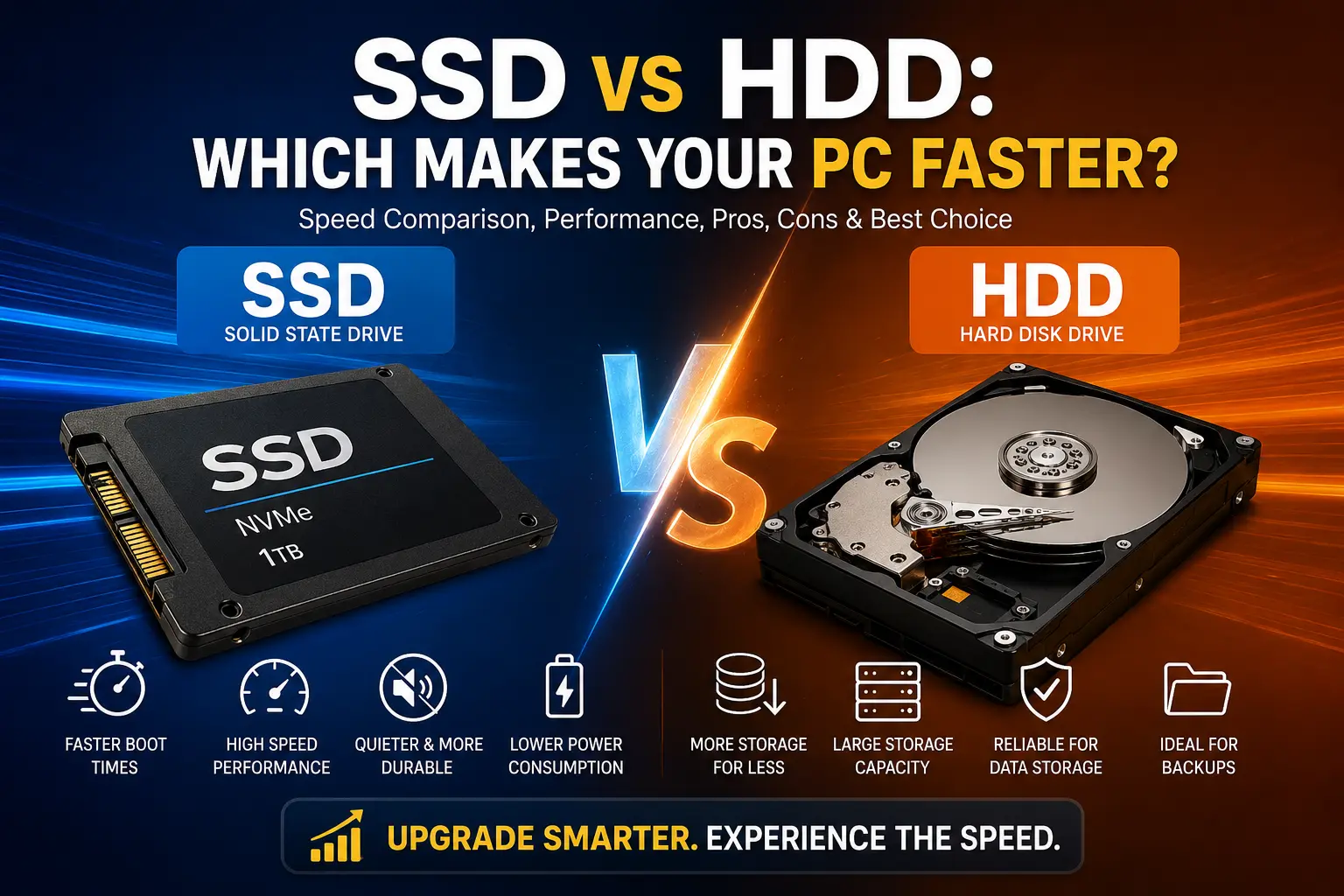
Computers are expected to handle everything from everyday browsing and office work to gaming, video editing, and multitasking. Yet many users experience slow startup times, sluggish applications, and frustrating delays. When this happens, one of the biggest factors affecting performance is the type of storage drive installed in the system.
If you're comparing SSD Vs HDD, you're not alone. Many PC users wonder whether upgrading their storage can improve speed and overall performance. While both storage devices serve the same purpose—storing your operating system, applications, and files—they work very differently and deliver significantly different results.
In this guide, we'll break down the differences between SSDs and HDDs, explain how they affect PC performance, and help you decide which option is best for your needs.
Understanding SSD and HDD Storage
Before comparing performance, it's important to understand what each storage type does and how it works.
What Is an HDD?
A Hard Disk Drive (HDD) is a traditional storage device that uses spinning magnetic disks to store and retrieve data. A mechanical arm moves across the disk to read and write information.
HDDs have been around for decades and remain popular because they offer large storage capacities at relatively low prices.
Key characteristics of HDDs:
- Mechanical moving parts
- Lower cost per gigabyte
- Available in large capacities
- Slower read and write speeds
- More vulnerable to physical damage
What Is an SSD?
A Solid-State Drive (SSD) stores data on flash memory chips instead of spinning disks. Since there are no moving parts, SSDs can access and transfer data much faster than HDDs.
SSDs have become increasingly popular in modern laptops and desktop computers because they significantly improve system responsiveness.
Key characteristics of SSDs:
- No moving parts
- Extremely fast data access
- Lower power consumption
- Greater durability
- Quieter operation
SSD Vs HDD: Speed Comparison
When discussing PC performance, speed is where SSDs truly stand out.
Boot Time Performance
One of the most noticeable differences between an SSD and an HDD is startup speed.
A computer using an HDD may take anywhere from 30 seconds to several minutes to fully boot into Windows. In contrast, an SSD-equipped system can often start in less than 15 seconds.
This faster startup experience is one reason many users upgrade their storage drives.
Application Loading Times
Programs installed on an SSD launch much faster than those stored on an HDD.
Common applications such as:
- Microsoft Office
- Adobe Photoshop
- Web browsers
- Video editing software
- Games
can load in seconds rather than minutes when installed on an SSD.
File Transfer Speeds
SSDs dramatically outperform HDDs when copying, moving, or accessing files.
Typical speed ranges include:
Storage Type | Read Speed |
HDD | 80–160 MB/s |
SATA SSD | 500–600 MB/s |
NVMe SSD | 2,000–7,000 MB/s |
The difference becomes especially noticeable when working with large files, high-resolution videos, or extensive project folders.
How SSDs Improve Overall PC Performance
Many people searching for solutions to a slow computer focus on software fixes while overlooking storage upgrades.
If you've already tried various methods to Fix Slow Computer Windows 11, upgrading from an HDD to an SSD is often one of the most effective hardware improvements available.
Faster Multitasking
SSDs can handle multiple read and write requests simultaneously with much greater efficiency.
This means:
- Faster switching between applications
- Reduced system lag
- Better responsiveness under heavy workloads
Improved Operating System Performance
Windows constantly accesses system files, temporary files, and background services.
Because SSDs retrieve data almost instantly, the operating system feels smoother during:
- Startup
- Shutdown
- Software updates
- File searches
- System maintenance tasks
Better Gaming Experience
While SSDs don't directly increase frame rates, they improve several aspects of gaming:
- Faster game installation
- Reduced loading screens
- Quicker level transitions
- Faster texture streaming
Many modern games are optimized for SSD storage and perform noticeably better when installed on one.
Which Storage Drive Is Best for Different Users?
Choose an SSD If You:
- Want a faster computer
- Frequently multitask
- Use professional software
- Play modern games
- Need quick startup times
- Work with large files
Choose an HDD If You:
- Need massive storage capacity
- Have a limited budget
- Store large media collections
- Use storage primarily for backups
- Best of Both Worlds
Many users combine both technologies:
- SSD for Windows and applications
- HDD for long-term storage
This setup delivers excellent performance while maintaining affordable storage capacity.
Conclusion
When comparing SSD Vs HDD, the answer is clear for anyone focused on speed and responsiveness. SSDs dramatically outperform HDDs in boot times, application launches, file transfers, and overall system performance. Their durability and energy efficiency further strengthen their appeal.
However, HDDs still offer excellent value for users who need large amounts of affordable storage.
For most modern PCs, the ideal setup is an SSD for the operating system and frequently used applications, paired with an HDD for storing large files and backups. This combination provides the best balance of speed, storage capacity, and cost.
Related Post: Top Software Testing Tools Every QA Engineer Should Know